

9A0-351 Online Practice Questions and Answers
Questions 4
How can you find the complementary color for a selected swatch?
A. Choose a swatch in the Kuler Panel.
B. Choose Edit > Edit Colors > Blend Front to Back.
C. Choose a Color Guide Harmony Rule.
D. Choose a color in the Swatches Panel.
Questions 5
Identify a unique benefit of using an SVG compared to other web graphic formats.
A. Creates an editable raster format.
B. Supported on all web browsers.
C. Won't lose quality if zoomed or resized.
D. Smaller file size compared to other formats.
Questions 6
How can you select a group of objects that are contained within another group (i.e., a nested group)?
A. Click on the group with the Selection tool
B. Alt+click (Windows) or Option+click (OS X) with the Selection tool
C. Click on the group with the Direct Selection tool
D. Alt+click (Windows) or Option+click (OS X) with the Direct Selection tool
Questions 7
You are drawing a shape with the Pen tool. As you are drawing you click and drag to add an anchor point with a direction line. You then realize you need to reposition the anchor point. Without releasing the mouse button, how can you reposition that anchor point while drawing?
A. Hold down Ctrl+Alt (Windows) or Cornrnand+Option (OS X) and reposition the anchor point.
B. Hold down the Shift key on the keyboard and reposition the anchor point.
C. Hold down the spacebar key on the keyboard and reposition the anchor point.
D. Continue dragging until the anchor point begins to move.
Questions 8
What is a good reason to create a paragraph style and apply it to text?
A. You want to enable OpenType features for a line of text.
B. You want to format text consistently across all artboards.
C. You want to apply different formatting to individual words.
D. You want to format tabular content such as a restaurant menu.
Questions 9
You want to vary the width of one side of a stroke, in one area of a path, using the Width tool. How can you achieve this result?
A. Choose an option from the Variable Width Profile menu in the Control panel, then click and drag to the side of the path that you want to modify.
B. In the Stroke panel, change the alignment of the stroke on the path in the direction that you want the stroke modified.
C. Using the Width tool, click and drag to the side of the path that you want to modify.
D. Choose the Width tool, hold down the Option key (OS X) or Alt key (Windows), and drag in the direction that you want to modify the stroke.
Questions 10
You want to make specific areas of an object partially or completely transparent based on the gray values of a second object placed in front. How should you set up the two objects?
A. Select both objects and choose Object > Compound Path > Make.
B. Group the two objects and choose Object > Clipping Mask > Make.
C. Select the object in front and apply the Overlay blending mode.
D. Draw or paste the second object into the first object's opacity mask.
Questions 11
Click the Exhibit tab to see the exhibit.
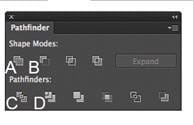
You've drawn a rectangle on the artboard, then you add multiple ovals on top of that rectangle. You want the ovals to "punch through" the rectangle. Which shape mode in the Pathfinder panel will achieve this result?
A. A
B. B
C. C
D. D
Questions 12
Click the Exhibit tab to see the exhibit.

How can you change this so that where the two objects overlap, you see green (a combination of yellow and blue)?
A. Select the blue object and choose Screen from the Blending Mode pop-up menu in the Transparency panel.
B. Select both objects and choose Unite in the Shape Modes section of the Pathfinder panel.
C. Select the blue object and enable the Overprint Fill checkbox in the Attributes panel.
D. Select both objects and choose Intersect in the Shape Modes section of the Pathfinder panel.
Questions 13
You are working on an Illustrator image and wish to receive comments as a Work In Progress in Behance. How would you do this while in Illustrator?
A. Choose File > Share on Behance and tag your document as Work In Progress.
B. Choose File > Export and choose Behance as the format. Then choose Work in Progress
C. Choose File > Share on Behance. Then change the Visible To setting to Feedback Circle.
D. Choose File > Share on Behance. Then change your Visible To setting to Everyone.


Home | About Us | Contact Us | FAQ | Guarantee Policy | Privacy Policy
Any charges made through this site will appear as Global Simulators Limited. All trademarks are the property of their respective owners.
Copyright © 2004-2026 pass2lead.com, All Rights Reserved.